15 Best FREE Code Editor & Coding Software

Pros and Cons of Using These Editors:
The code editors are helpful if you are writing the code from scratch. But if you have to edit the existing code which is written by someone else then IDE is the best option. IDE is helpful in understanding the code written by others as code editors cannot compile or debug the code.
Some features of these editors are better than IDE like theme selection and searches, which are important while writing the code. Meanwhile, instead of editing a few lines and constantly debugging with code editors, you can concentrate more on coding.
Another reason for using these editors instead of IDE is that IDE uses more resources like CPU, memory, and disk space. The coding editors don’t use many resources, hence they are fast.
Points to consider while selecting the best editor for your project:
- Supported languages
- Supported operating systems or platforms.
- Features
- Price
#1) UltraEdit

Best Features:
- Load and handle large files with unsurpassed power, performance, startup, & file load.
- Customize, configure, and re-skin your entire application with beautiful themes – works for the whole application, not just the editor!
- Supports complete OS integrations such as command lines and shell extensions.
Pros:
- Find, compare, replace, and find inside files at blazing speed.
- Quickly spot visual differences between your codes with a fully integrated file compare.
- Access your servers and open files directly from the Native FTP / SFTP browser or SSH/telnet console in UltraEdit.
- Built-in hex edit mode and column editing mode give you more flexibility in editing your file data.
- Quickly parse and reformat XML and JSON using built-in managers.
Cons:
- Not open source
#2) Atom

Features:
- It has a built-in package manager.
- It provides smart options for auto-completion.
- You can open the tool in multiple panes for comparison.
- It supports cross-platform editing.
- It provides more features for finding & replacing text, and for searching files.
Pros:
- Easy to use.
- It provides some special developer tools.
- Easy to customize UI.
Cons:
- For writing packages, you will need a Coffee Script.
Tool Cost/Plan Details: Free
#4) Notepad++
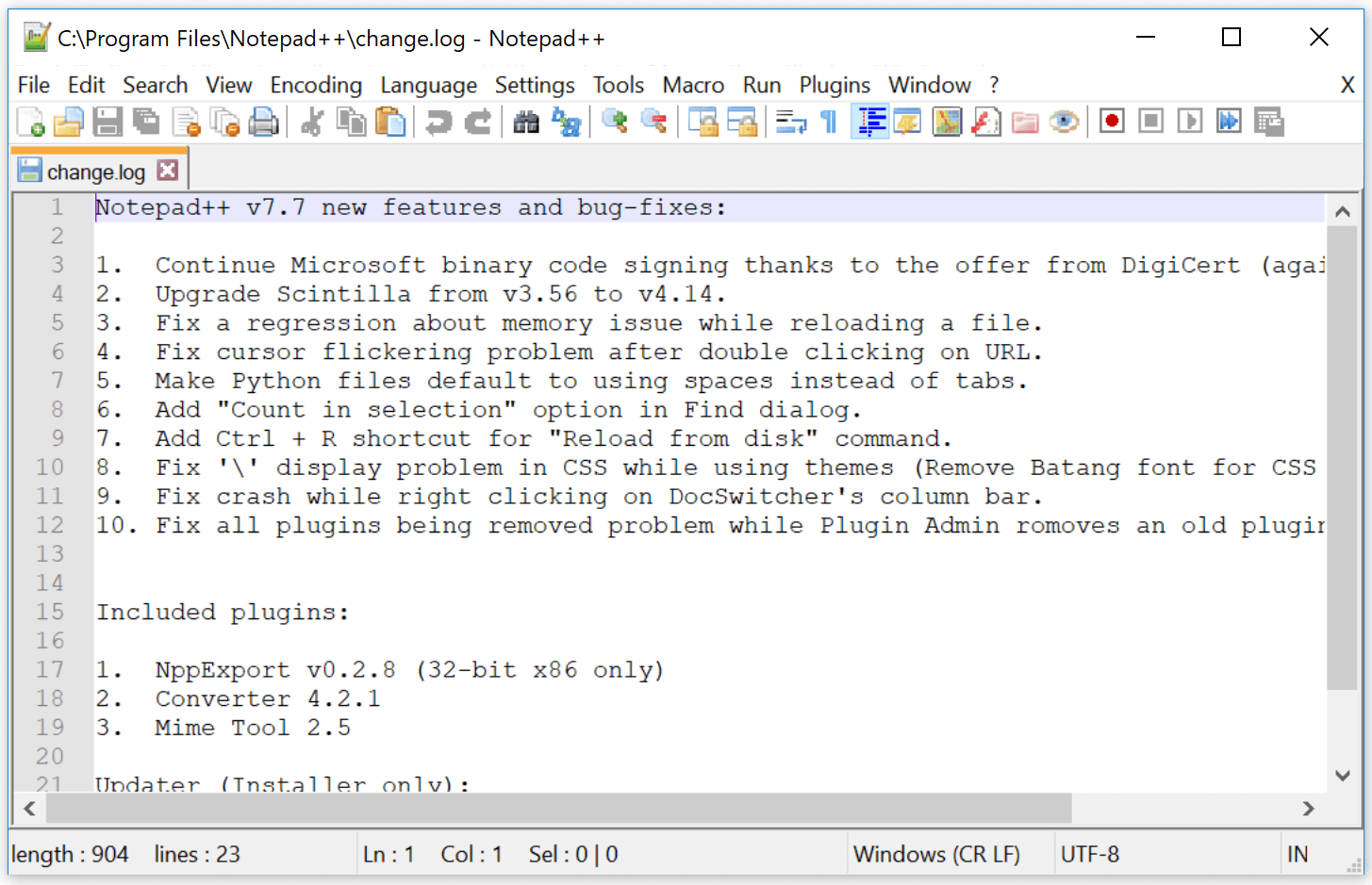
Features:
- It supports Macros recording and playback.
- For ease of use, it provides many features like adding bookmarks, finding and replacing tasks, auto-completion, and syntax highlighting.
- It supports Multi-View and Tab interfaces for Multi-Documents.
Pros:
- Spell check option is provided.
- Easy to use for beginners as well.
- Good community support from GitHub.
Cons:
- Remote file editing is not available for HTTP, SSH, and WebDAV.
- If you want to use Notepad++ on Mac, then you will have to use a third-party tool.
Tool Cost/Plan Details: Free
#5) Brackets
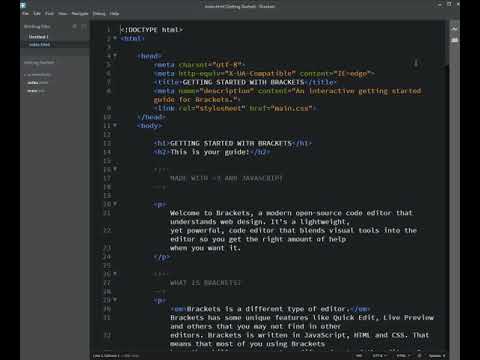
Features:
- It is Extensible.
- It is lightweight and powerful.
- Brackets provide the feature of ‘Live Preview’, with the help of which you will be able to see the changes made to your CSS or HTML in your browser instantly.
- It provides Inline Editors.
Pros:
- Provides new features and bug fixes through regular updates.
- Easy to customize.
- You can preview the code which is going to establish the connection.
Cons:
- The auto-complete option is not available.
- Third-party plugins are not supported.
- Full-screen and split-screen options are not supported.
Tool Cost/Plan Details: Free
#6) Visual Studio Code
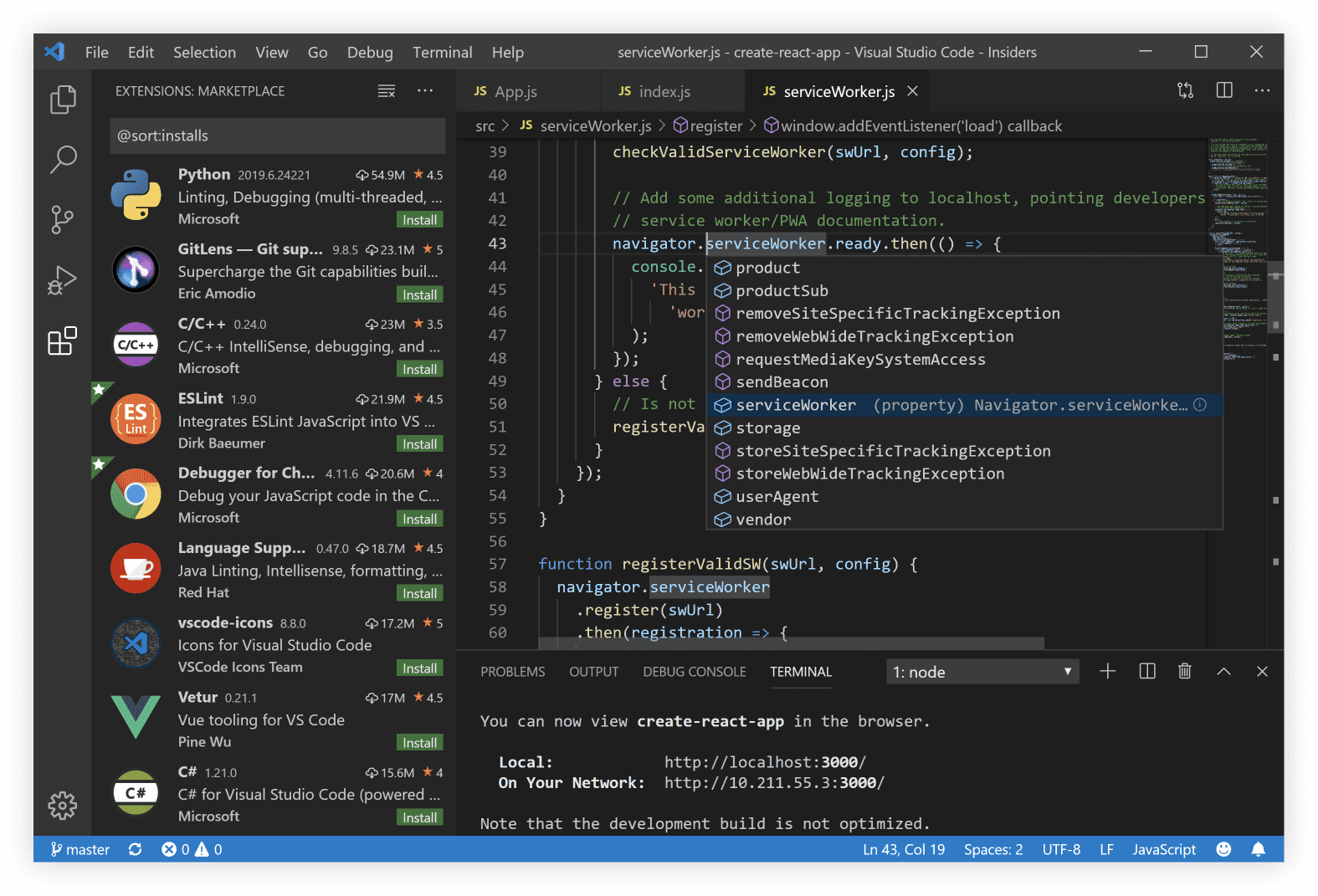
Features:
- Syntax highlighting.
- Auto-completion of variable types, function definitions, and imported modules.
- Debugging with breakpoints, call stacks, and an interactive console.
- Visual Studio Code is extensible and customizable.
Pros:
- Lightweight tool.
- It doesn’t take much space on RAM.
Cons:
- Sometimes the system runs slow on Linux.
Tool Cost/Plan Details: Free
#7) Vim
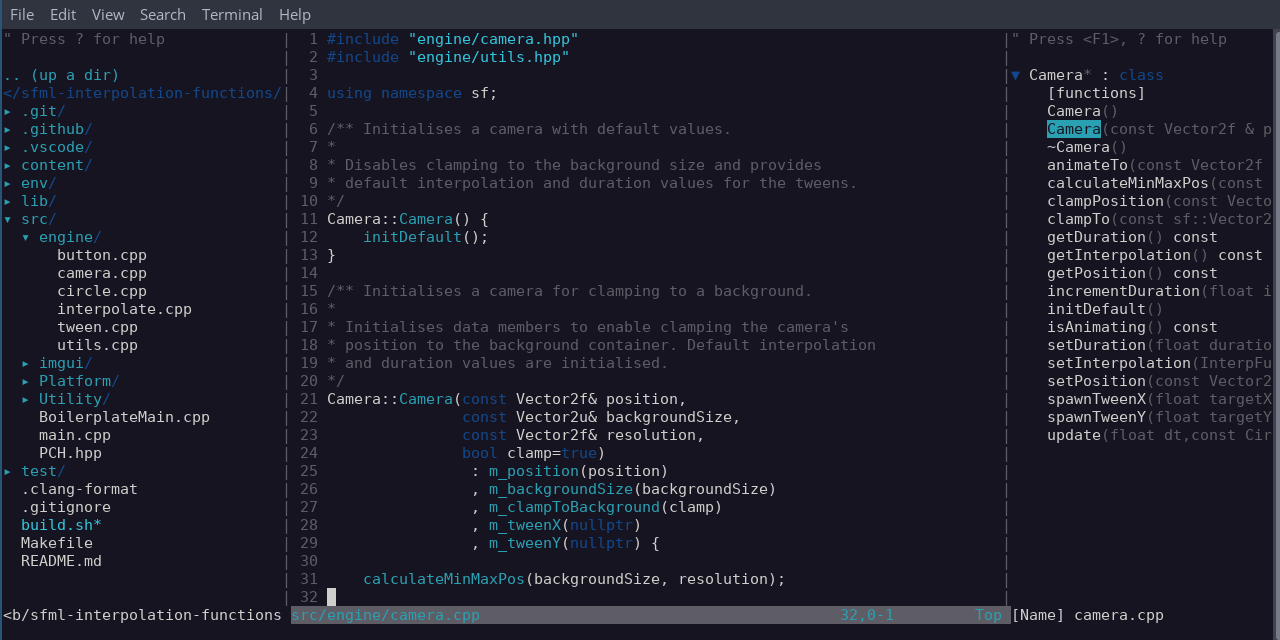
Features:
- Syntax highlighting.
- It supports the editing of compressed files.
- It provides support for mouse interaction.
- Spell check.
Pros:
- Recording macros.
- It supports many programming languages.
- Availability of search and replace functionality.
Cons:
- It is difficult to learn.
- It provides limited iDE features.
Tool Cost/Plan Details: Free
Features:
- Syntax highlighting.
- It supports the editing of compressed files.
- It provides support for mouse interaction.
- Spell check.
Pros:
- Recording macros.
- It supports many programming languages.
- Availability of search and replace functionality.
Cons:
- It is difficult to learn.
- It provides limited iDE features.
Tool Cost/Plan Details: Free
#9) TextMate
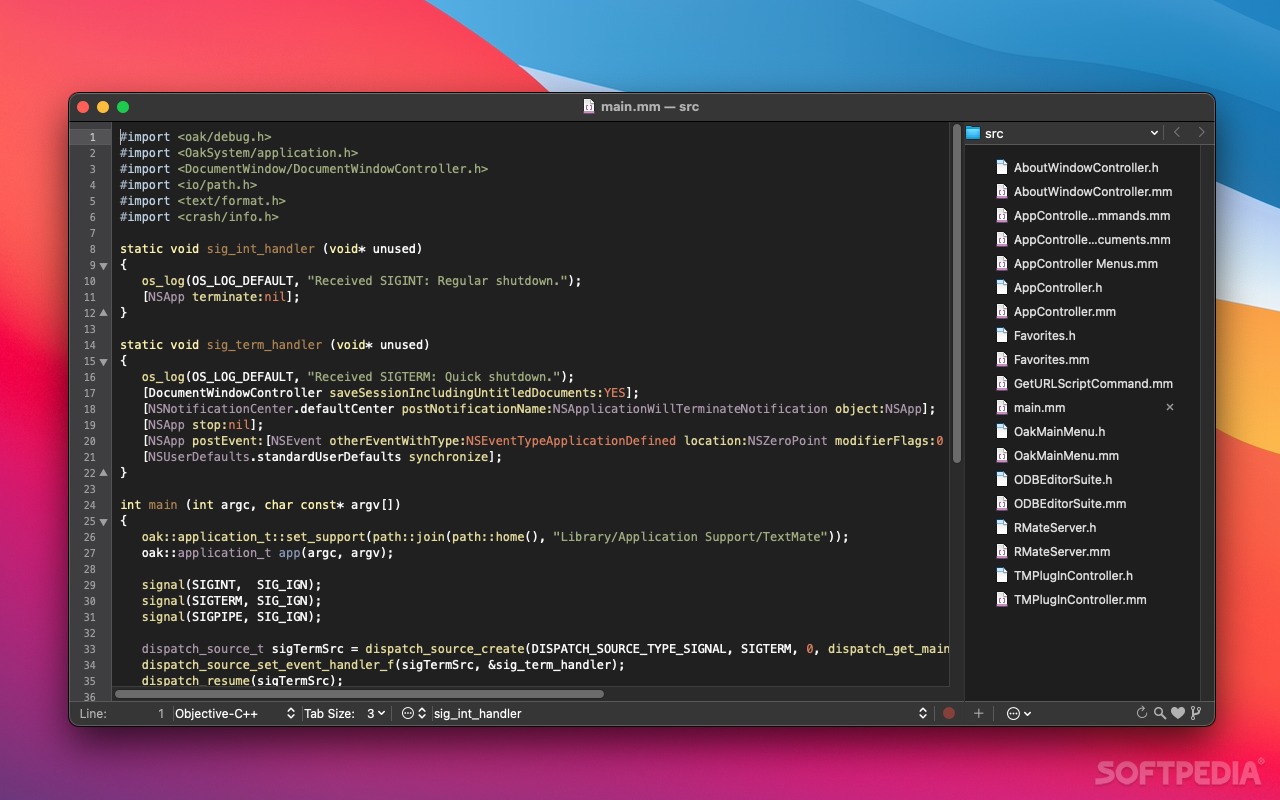
Features:
- Search and replace functionality within a project.
- Auto-paring for brackets.
- You can record Macros without programming.
- It provides some project management features.
- You can select a theme for syntax highlighting.
Pros:
- You can search and replace regular expressions.
- It supports switching between the files within the project in just a few keystrokes.
Cons:
- It doesn’t provide guided code completion facility.
- It doesn’t have a built-in HTML validator.
Tool Cost/Plan Details: Free
#10) TextWrangler
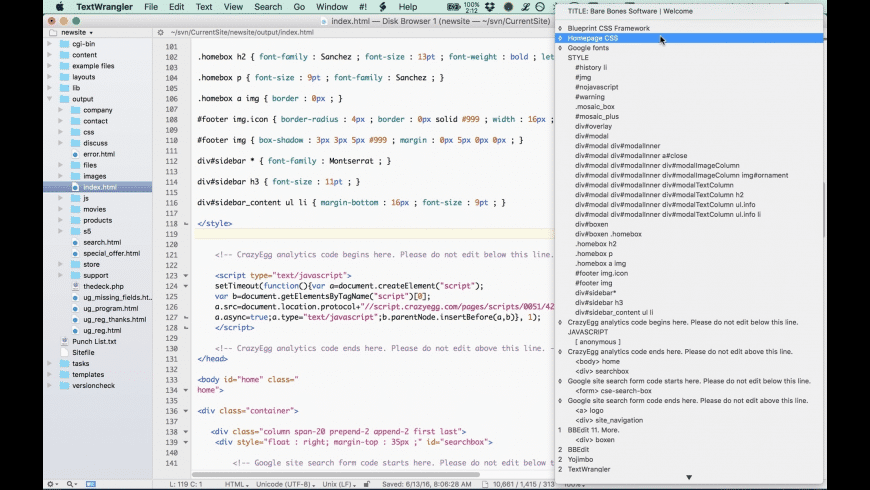
Features:
- It supports the comparison of text files.
- It allows for multiple Undo.
- It supports auto indentations.
- You can split the editing windows.
- Extensive FTP & SFTP support.
Pros:
- It supports full-screen mode.
- Powerful search and replace option.
- It has rectangular text selection.
Cons:
- It is available only for Mac OS.
Tool Cost/Plan Details: $49.99
Conclusion
The Atom code editor is specially made for developers and is a good option for basic and advanced programming. Sublime text is good for HTML and PHP programming beginners. Notepad++ has good code highlighting functionalities.
Brackets is an inline text editor for web designing. With Brackets, you can view the changes instantly. Visual Studio Code is the best solution for ASP.Net and C#. Vim is a good text editor but the only problem with that is, it has a steep learning curve.
Bluefish is best known as a high-speed PHP editor. TextMate and TextWrangler are the text editors for Mac only. UltraEdit is good for handling large files.


.gif)


.gif)

0 Comments